BACKGROUND ARTICLE
ImagineArt 1.5 First Review: Can It fit my Art Workflow?
ImagineArt 1.5 promises ultra-realistic AI images, but can it actually fit into a serious artist’s workflow? In this first hands-on review I test cinematic…
Art, tutorials and visual experiments
TUTORIALS
A complete, step-by-step breakdown of how I turned an AI dot-matrix city into a colourful canyon—with real-world ripped-paper depth.
By Arjen Roos – ArjenRoos.com
Lately people have been asking for another tutorial and it has been awhile since my last one So it’s time for an AI assisted artwork. Below is everything—from the exact prompt I fed the AI, to the Blend-If trick that makes the dots transparent, to the final upscale decisions (Magnific AI vs. Topaz Bloom vs. Gigapixel). Copy-paste it, experiment, and make it your own.
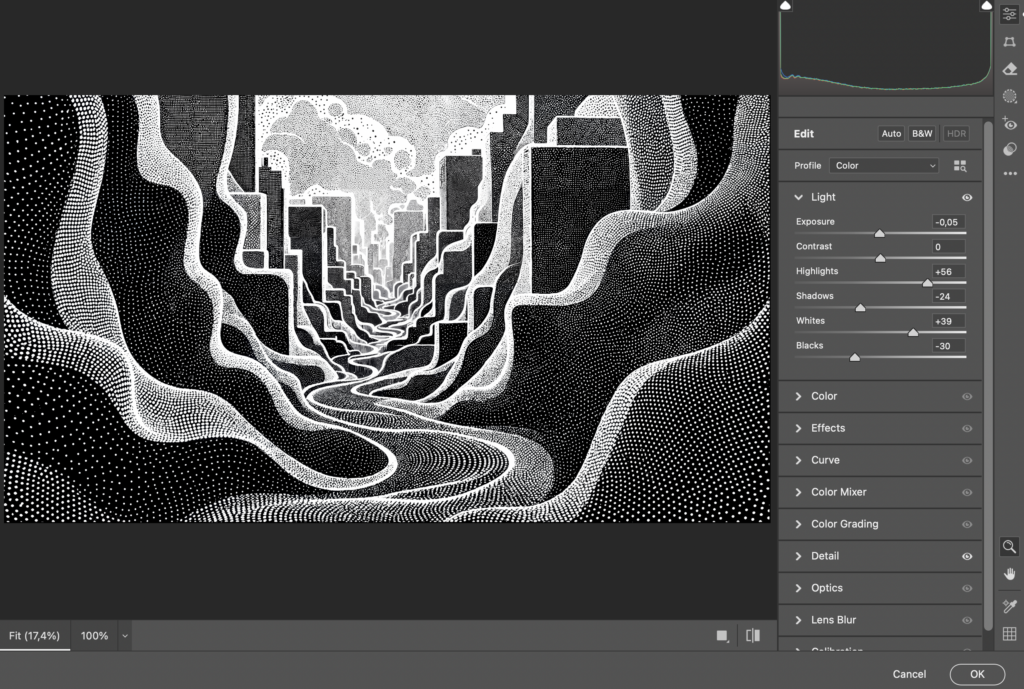
"A carbonpunk-themed image with intricate halftone patterns and textures resembles a detailed cityscape.
The award-winning design showcases elegant flowing shapes, subtle shadow play.
The minimalist colour scheme creating a visually striking and thought-provoking visual narrative."
Model: SDXL (I used Leonardo.ai).
Style: Black & white only.
Reason: We want crisp black shapes and white dots—colour comes later.
Save as: PNG to keep hard edges.
I enlarge first so the stippled dots stay razor sharp during colour work.
| Tool | Settings I Used | Result |
|---|---|---|
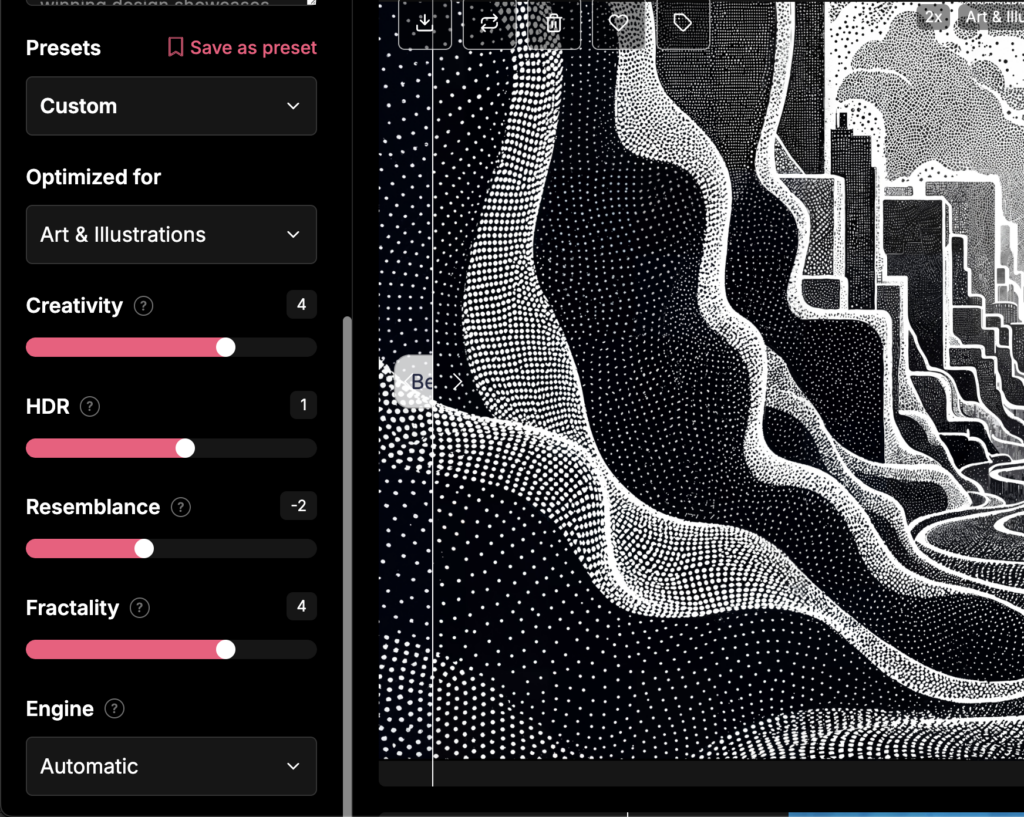
| Magnific AI | Creativity 4, HDR 1, Resemblance -2, Fractality 4, Engine Auto | Three passes → 11 008 × 6 144 px (~68 MP) |
Why Magnific? At the moment the 39 €/mo plan suits my budget and lets me go higher than Bloom’s normal 64 MP ceiling. (Topaz Bloom Premium is temporarily testing up to 100 MP, which is great to see, but I’m watching the pricing first.)
Want the full Bloom-vs-Magnific showdown? Read my comparison here → https://www.arjenroos.com/topaz-bloom-vs-magnific-ai/
I worked on this piece in Photoshop on a 32 GB M2-MacBook Pro at the native resolution of 11008 × 6144 px. No lag, no crashes, and the brush response felt perfectly snappy. When your hardware keeps up, staying in the maximum resolution has one clear advantage: the master file already contains every pixel you’ll ever need. From that single PSD I export
So the rule of thumb becomes:
If your computer stays responsive, work native.
If it starts to wheeze, down-scale for the creative phase
Resize it to 3840 × 2160 px (4 K 16 : 9) for screen and feel free to go larger if your machine allows..
Both workflows land in the same place; pick the one your hardware—and patience—prefers.
| Order | Layer | What It Does |
|---|---|---|
| ✦ Top | Ripped Paper Texture (Blend Mode : Multiply) | Real shadows from my Ripped Assets Pack |
| AI Dots PNG | The stencil we just upscaled | |
| Photo Filter | Global toning (Warming 85, Density ≈ 60 %) | |
| Colour Map | Blank at first—this is where we paint | |
| ▼ Bottom | Solid Black Fill | Safety net |
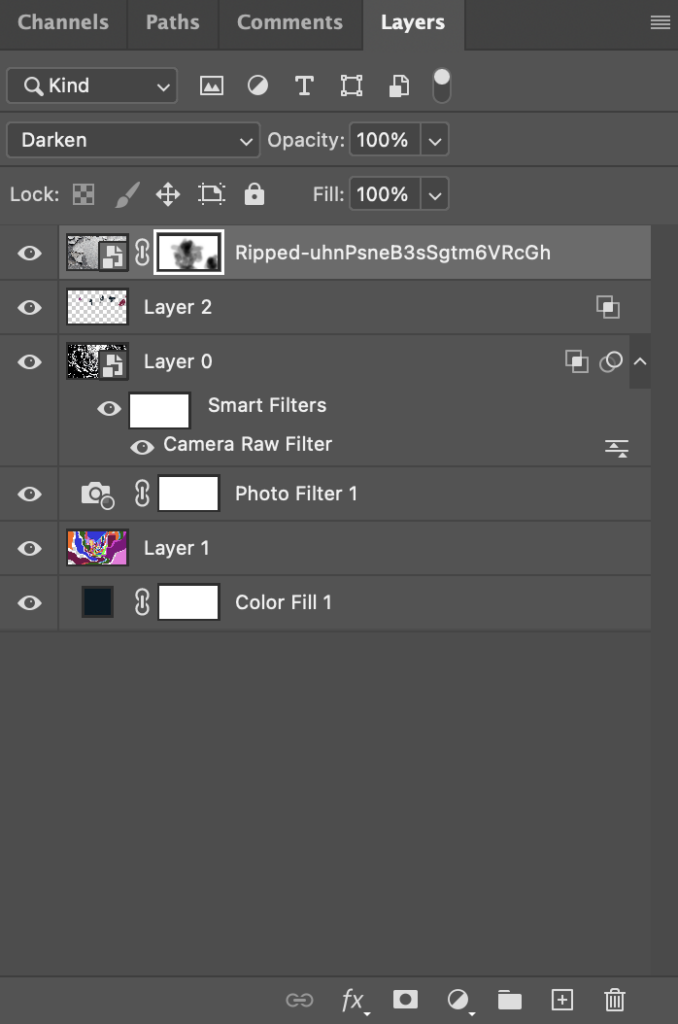
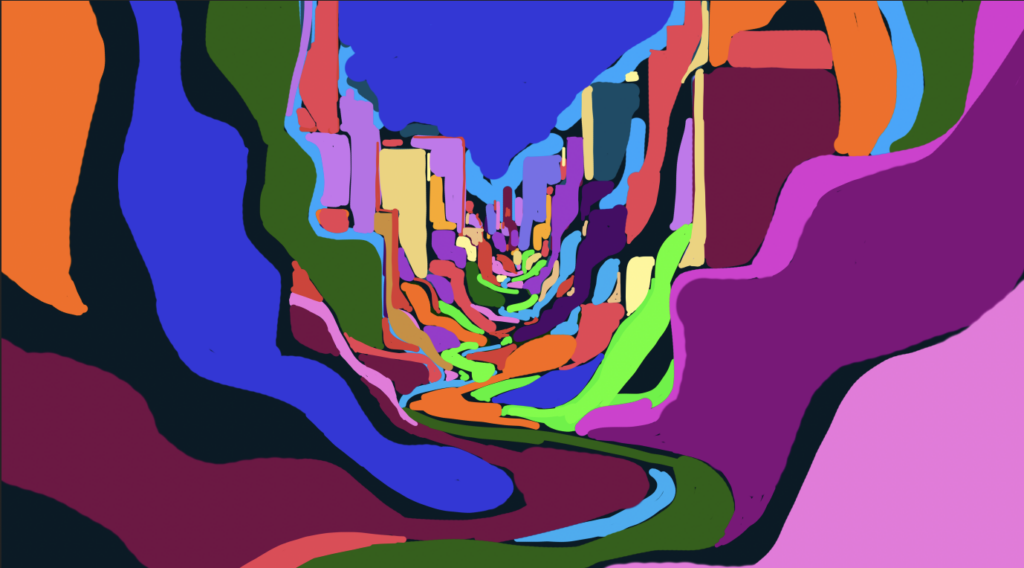
Shortcut: Lasso an area → Shift + F5 → Fill with foreground colour.
Palette hint: I went deliberately loud—pinks, limes, oranges—then cooled everything down with the Photo Filter until the hues felt coherent.
Because the AI dots sit on top, they mask ragged edges automatically.
Toggle the warm filter on/off. Warmth unifies loud hues; a cooling filter (#003C5B) flips the palette to neon-night.
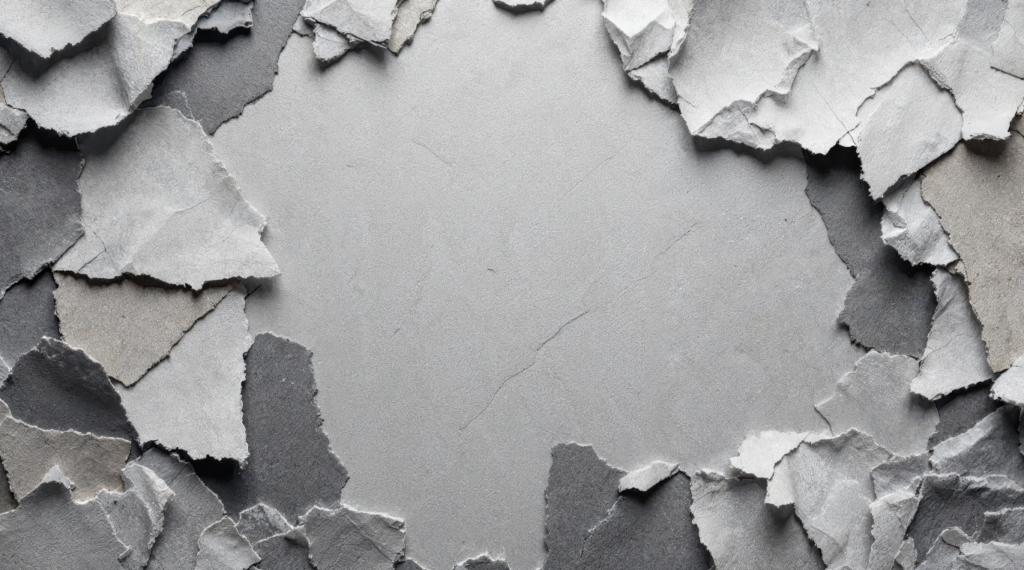
I grabbed one of the high-res gray textures from my Ripped Assets bundle (125 PNGs, 2 GB of pre-torn paper).
Instant depth: the paper shadows dive into the painted colours, giving the illusion that the cityscape is shredded out of thick cardboard.
Don’t have the pack? You can scan torn paper on a flatbed, desaturate, add Levels for punch, and save as PNG.
Tag me @ArjenRoosArt if you post—would love to see what you build!
Q: Why not Topaz Bloom?
A: I love Bloom’s one-slider simplicity and image quality (see my comparison), but I needed 68 MP and Magnific handled that today at my cheaper tier. Bloom Premium is trialling 100 MP—so this is very promising.
Q: Isn’t three passes expensive?
A: It is. Magnific has no preview yet, so test small crops first. If budget is tight, upscale once to ~16 MP, finish the art, then run a single final pass.
Q: Do I need the ripped-paper pack?
A: Scan your own scraps if you like. My bundle (125 PNGs, 2 GB, € 6.99 and ofcourse supporting me) just saves time and includes commercial rights.
Combining AI precision with messy, manual colour fills and tactile textures delivers a piece that feels both futuristic and handcrafted. CarbonPunk Cityscape is just one flavour—swap the prompt, change the colour map, drop in different paper tears, and you’ll have an entirely new series.
Happy creating—let the dots guide you!
— Arjen
(If this walkthrough helped, consider sharing the post or grabbing the Ripped Assets bundle to support future tutorials.)
Subscribe to get the latest posts sent to your email.
Related Writing
BACKGROUND ARTICLE
ImagineArt 1.5 promises ultra-realistic AI images, but can it actually fit into a serious artist’s workflow? In this first hands-on review I test cinematic…

NEW WORK
In this article, I share the complete creative process behind my The Godfather fanart — from 3D rendering in Daz3D to AI refinement with…
Explore Next